
During the week, I ran into a major blocker while performing a mobile application security assessment.
The application worked perfectly under normal conditions. However, the moment I attempted to intercept traffic (via proxy tools), the app would immediately go “out of service” completely losing network connectivity.
I initially explored common approaches:
Installing proxy certificates
Attempting SSL pinning bypass using Frida scripts
But none of these worked. Even after reaching out to the dev/devops team for relaxation on controls, there was no response.
The application’s defense mechanisms were sophisticated enough to detect and block interception attempts at the network layer, necessitating a root-level approach to successfully capture traffic.
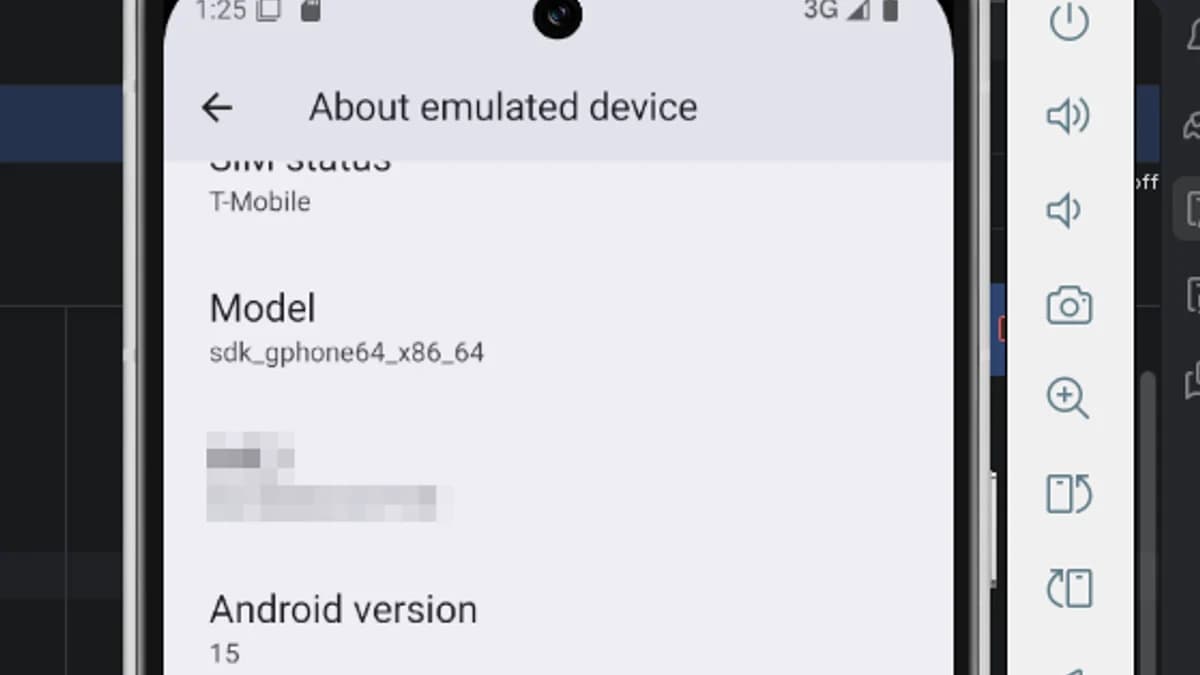
At that point, I decided to take a different route: Set up and root an Android 15 emulator for deeper control.
The Breakthrough: Rooting Android 15 (AVD)
Why Rooting Was Required
Root access enables:
System-level certificate installation (mandatory for Android 7+)
Bypass of network security configurations at OS level
Installation of Magisk modules for advanced SSL bypass
Full control over proxy settings without detection
Access to system directories required for certificate deployment
Without root access, modern Android applications can detect and block interception through:
Network Security Config enforcement
Certificate transparency validation
Root/proxy detection mechanisms
Custom TrustManager implementation
Key Steps:
Clone RootAVD from GitLab
Navigate to the directory
List available AVDs:
Setting Up Android 15 in Android Studio
I installed an Android 15 (API level 36) emulator via Android Studio.
Everything worked fine — except for one major limitation:
adb shell
su
Result: permission denied
Rooting the Emulator with rootAVD
To gain root access, I used rootAVD a powerful tool for patching Android Virtual Devices.
Important Note:
The GitHub version is outdated. Use the GitLab version, which is actively maintained.
After downloading and navigating to the rootAVD directory: (.\rootAVD.bat listAllAvds)
This lists all available emulator images.
From here:
Identify your Android 15 system image
Select the appropriate option from the script menu
Then execute the root process for that image.
What Happens Next
The emulator shuts down automatically
Root patches are applied
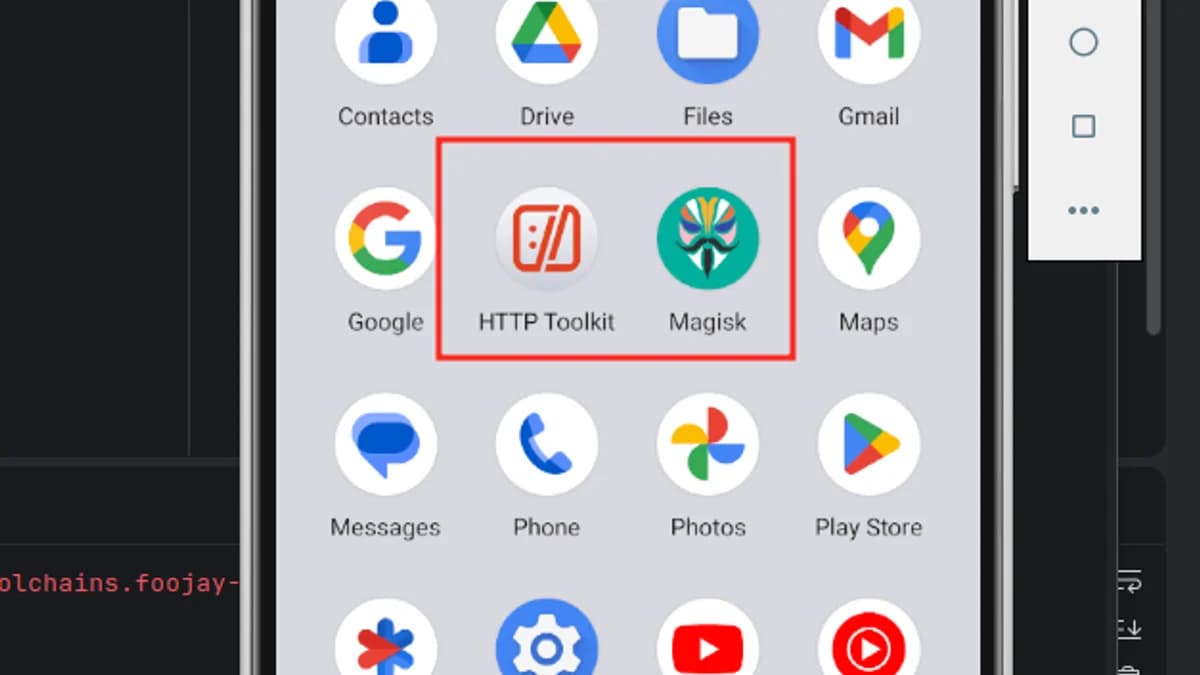
On reboot, Magisk is installed
Note:- If it doesn’t reboot automatically, Restart it manually
Magisk Setup & Root Verification
Once the emulator boots:
Open Magisk
Complete additional setup
Emulator restarts again
...............